
How to add a free IMAP email to Outlook
This guide shows you how to manually add a Mojo Websites free email account to Microsoft Outlook on Windows. If you are paying for dedicated email services, then please follow that guide.
These same steps can be followed across all email softwares as the settings remain the same.
You can also use webmail by visiting your full domain domain with a trailing /webmail (eg. www.yourdomain.com/webmail)
Webmail is also a good place to visit to confirm you are using the correct credentials and also test to see if the email service is working on our end.
Step 1: Open Outlook And Go To Account Settings
- Open Outlook.
- Click on File in the top-left corner.

Step 2: Open “Add Account” Screen
- Click Add Account under the “Info” section.

Step 3: Enter Your Email Address
- In the dialog box, enter your full email address (e.g.
yourname@example.com). - Click Advanced options.
- Tick Let me set up my account manually.
- Click Connect.

Step 4: Choose Account Type
- Select IMAP as the account type.

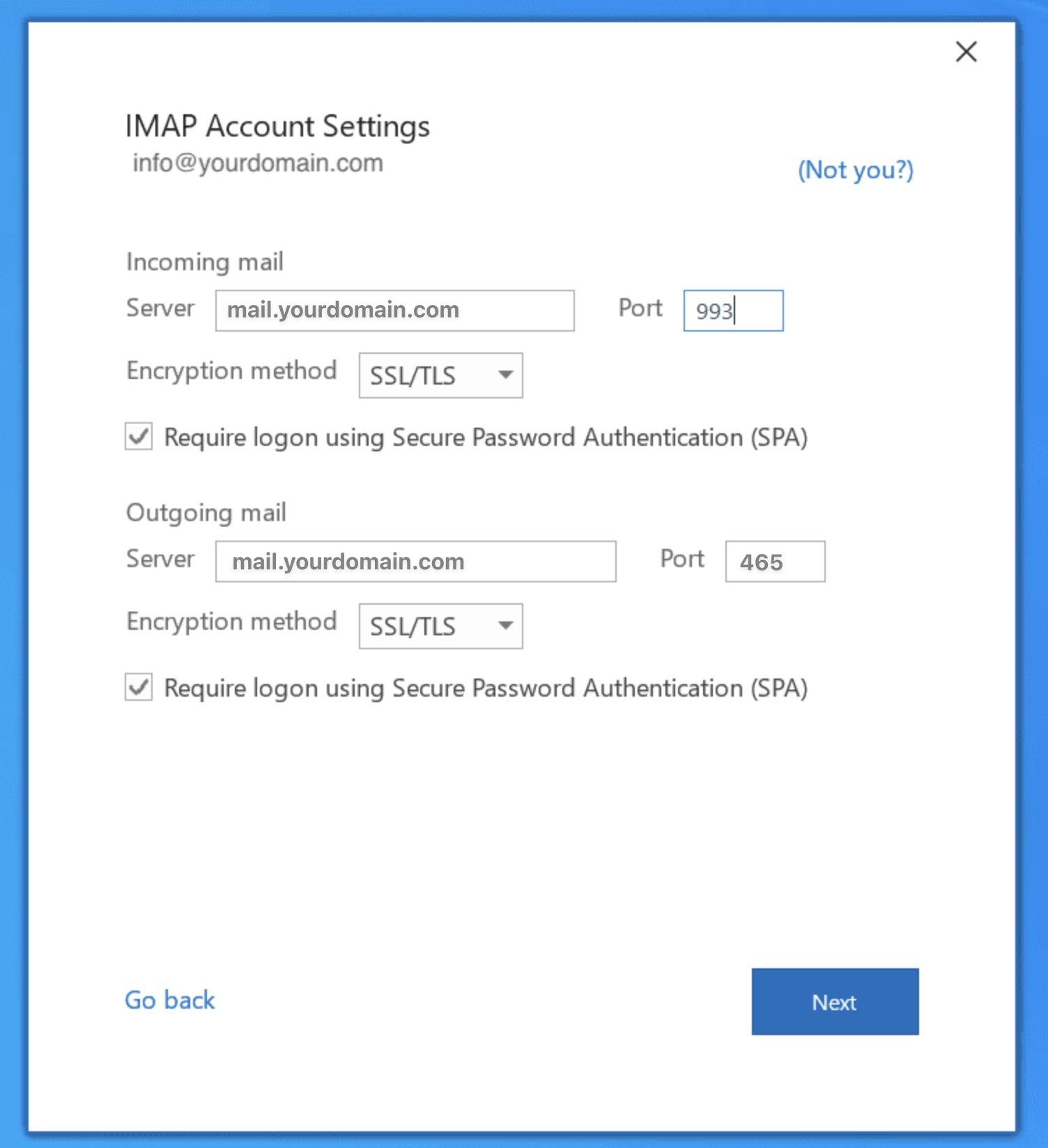
Step 5: Enter Server Settings
-
Incoming mail (IMAP)
Server:
mail.yourdomain.comPort:
993Encryption:
SSL/TLS -
Outgoing mail (SMTP)
Server:
mail.yourdomain.comPort:
465Encryption:
SSL/TLS
Step 6: Enter username and password
Your username will be your full email address. If you do not know your password, then you will need to contact us to reset it.
Step 7: Done!
Outlook will test your settings. If everything is correct, you’ll see a confirmation message. Click Done to finish.
